Include the STL file
Be sure to submit an STL file with each of your portfolio posts.
TIP
The easiest way to add your STL file to a portfolio post is to simply drag and drop it into the post you’ve created on Notion.
What is an STL file?
In the same way that a JPEG file holds the data that describes an image, and an MP3 file holds data that describes a song, a STL file holds data that describes the 3D models we create in Tinkercad.
How do I get my STL file?
At the top right of Tinkercad, click on Export:
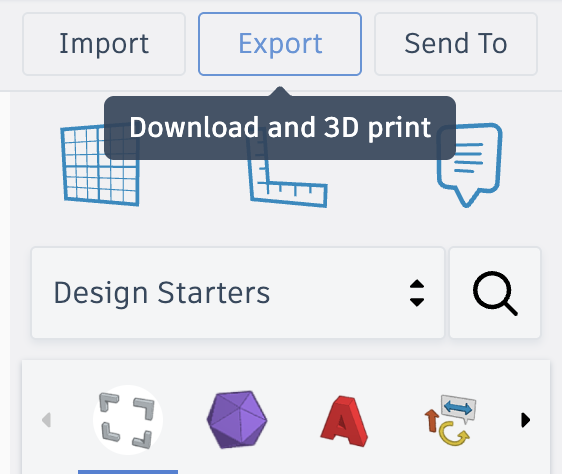
Next, click on .STL, then save it to a folder on your computer. It is recommended that you create a folder made specifically for this module of the course, and keep all the .STL files you download from Tinkercad there. Alternatively, create a smart folder that looks for .STL files on your computer.
IMPORTANT
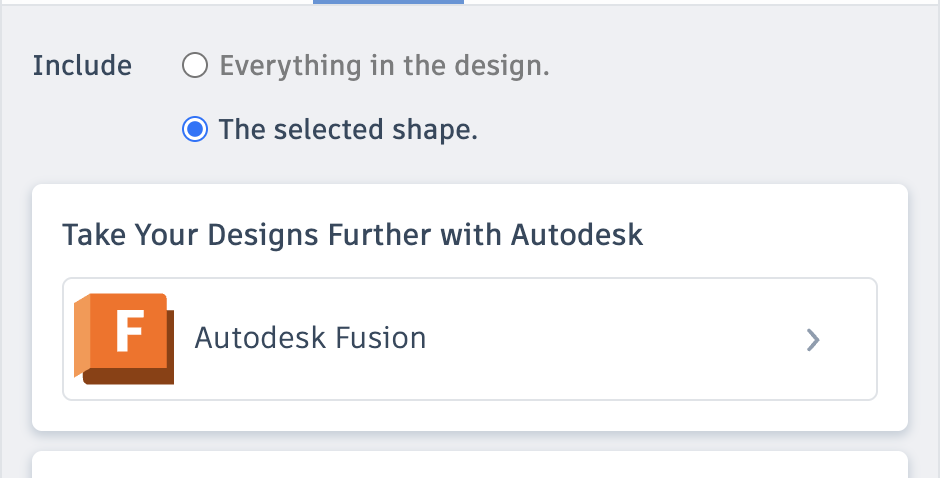
When saving a model in Tinkercad, if you have only part of the model selected when going to export, it will default to:
The selected shape
This option means that Tinkercad will export only what you have highlighted within your design.
So, please make sure that you have:
- selected no elements of your design
- selected all elements of your design
…or, that you remember to select
Everything in the designwhen exporting to an STL file, so that your full design is included.
How do I upload the STL file?
Drag and drop the .STL file into Notion.
The entire process of exporting and then submitting an .STL file is shown here: