Once a person has learned to tie their shoelaces, they stop consciously thinking about the individual steps involved.
If someone asks them to tie their shoelaces, the person can do just that.
In the same way, once we have worked out the individual steps of a task, we can teach the computer how to carry them out with a single command.
Defining a function
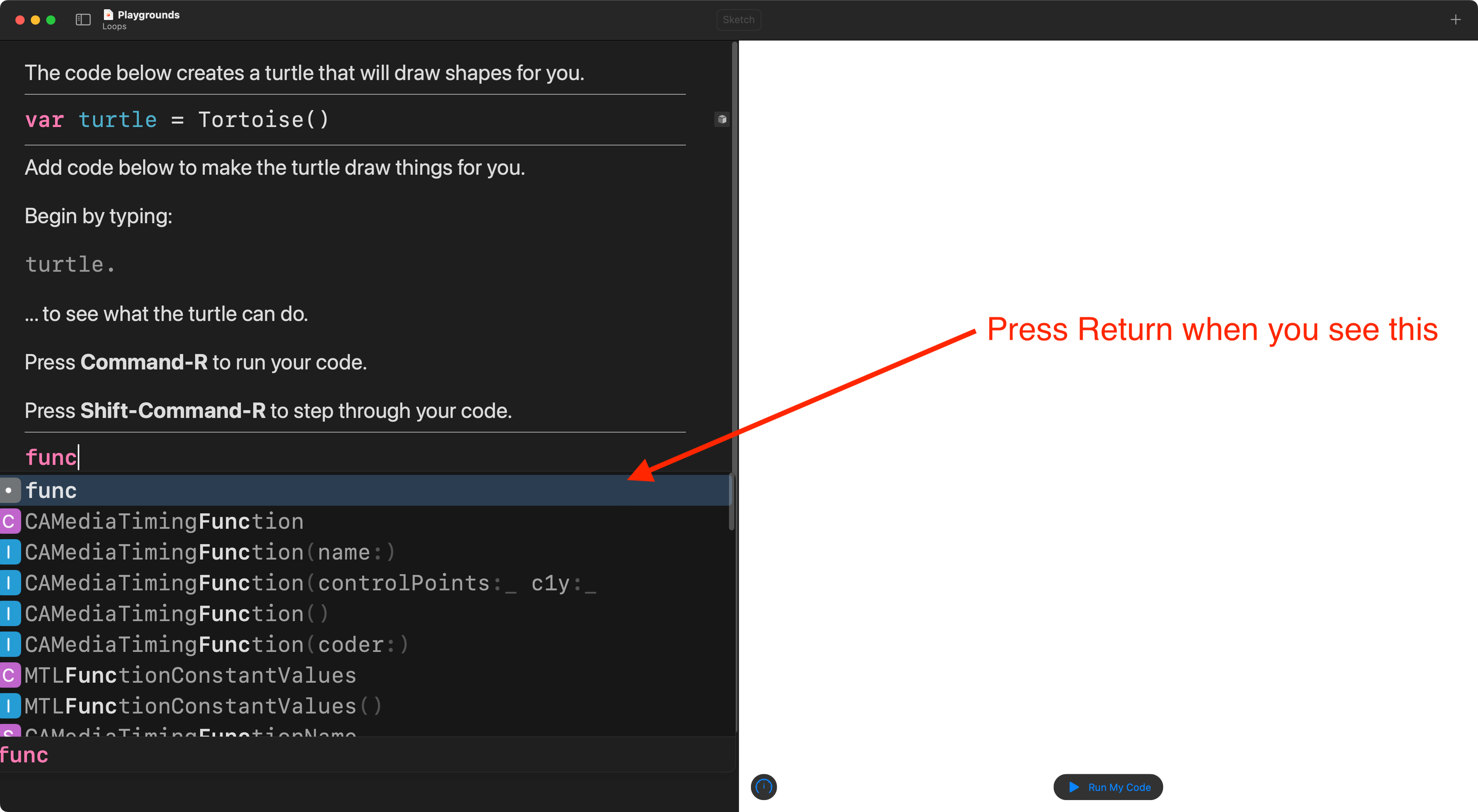
To define a function in Swift Playgrounds, just begin typing the keyword func, and then press the Return key to use autocomplete:
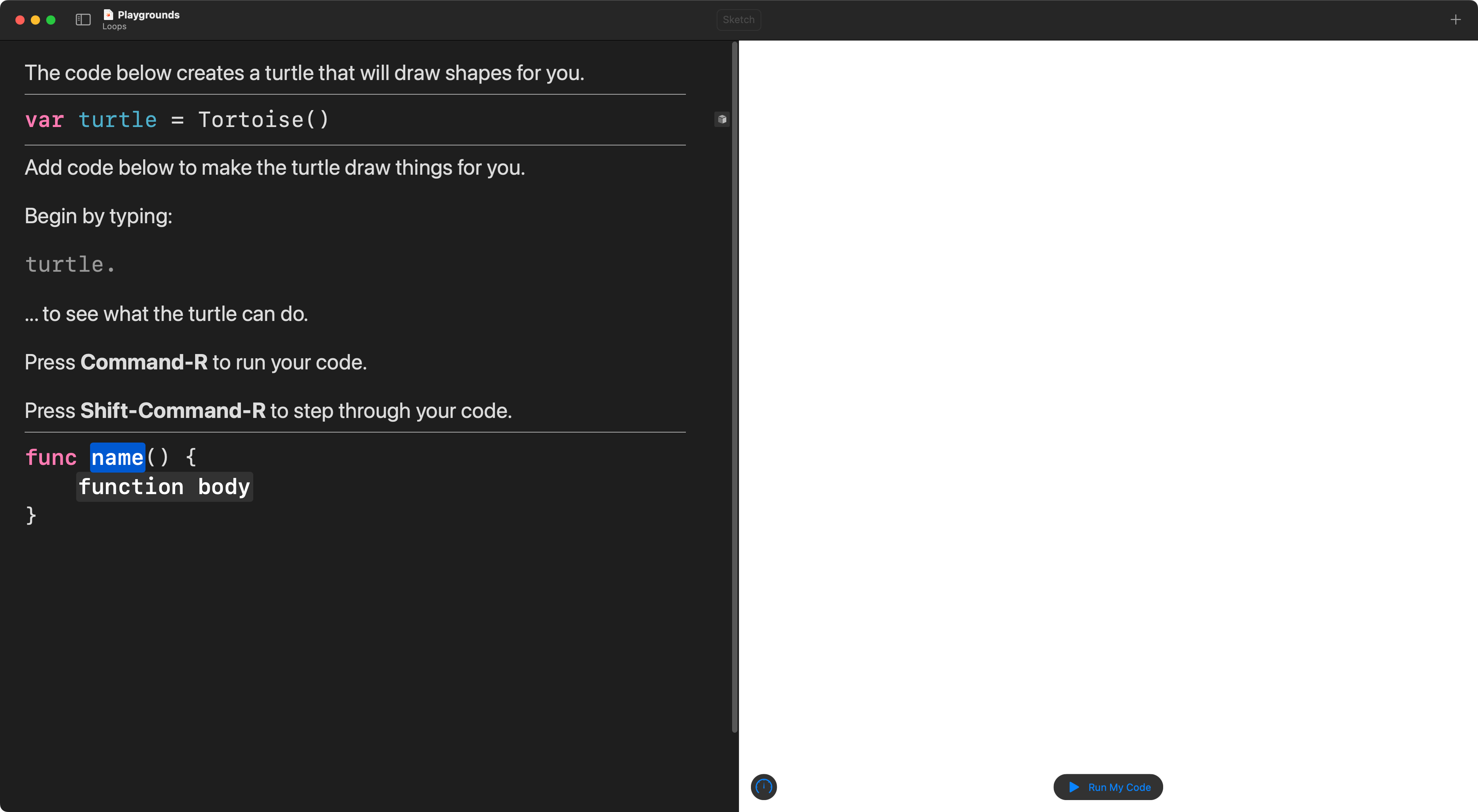
You will then have a template for a function that you can fill in:
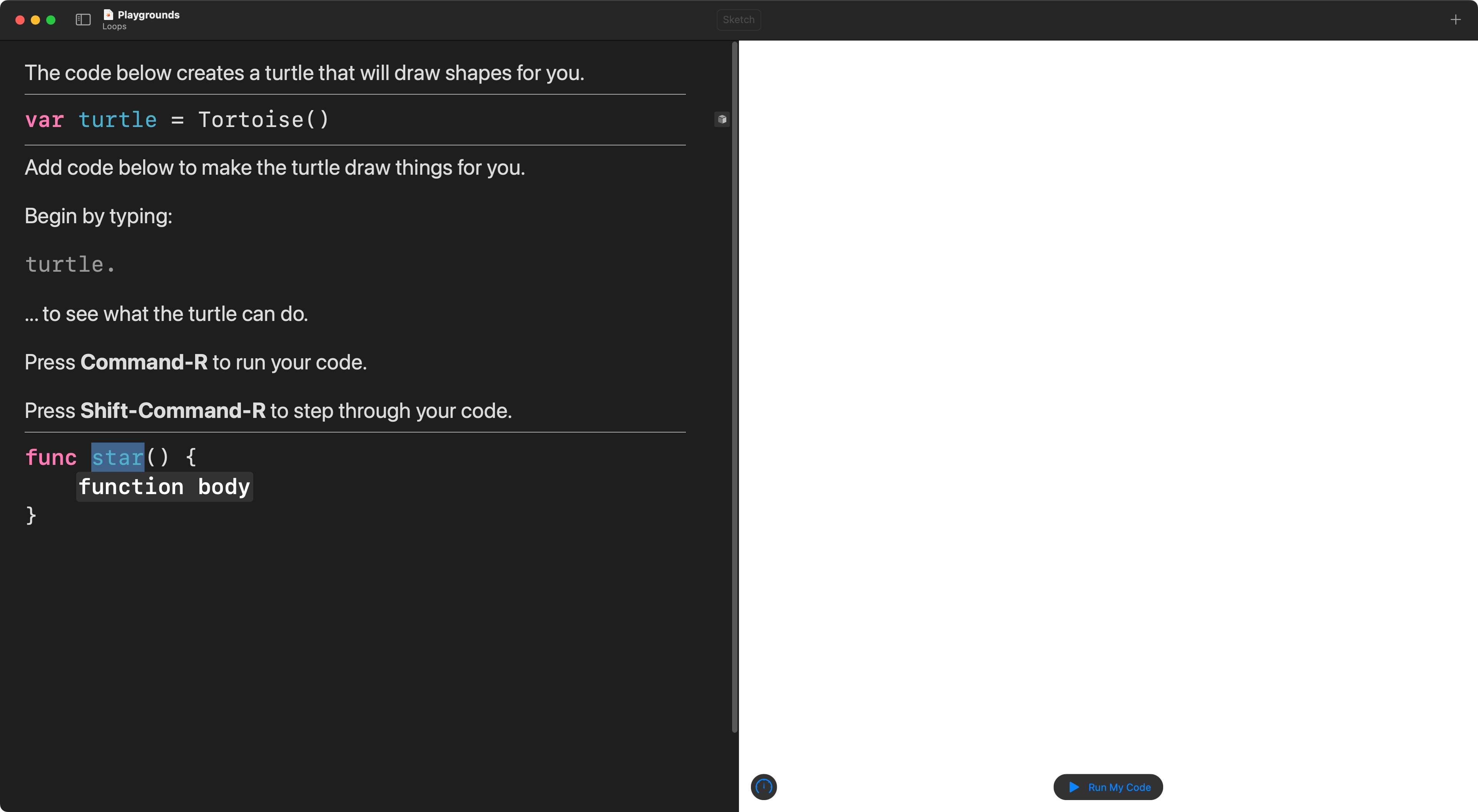
First, fill in the name. Let’s call this function star:
Next, copy the code shown here below into the body of the function:
// Set colors
turtle.fillColor = .yellow
turtle.penColor = .yellow

// Draw the 10 sides of a five pointed star
// in groups of 2 sides at a time
for i in 1 ... 5 {
	// Turn to draw a side
	turtle.right(angleInDegrees: 180 - 36)

	// Draw the side
	turtle.forward(distance: 50)

	// Turn to draw next side
	turtle.left(angleInDegrees: 72)

	// Draw next side
	turtle.forward(distance: 50)
}
… replacing the placeholder:
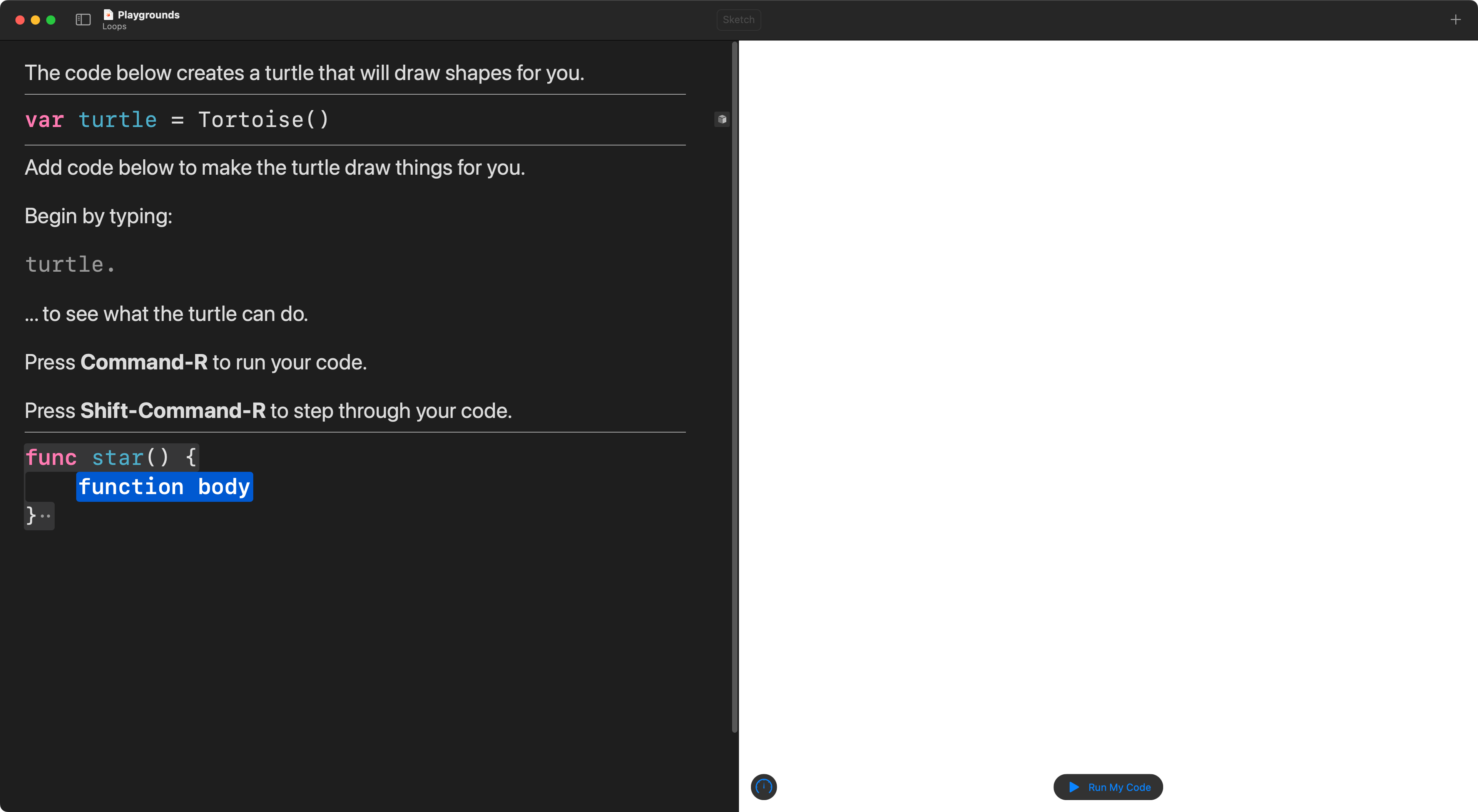
… with the code:
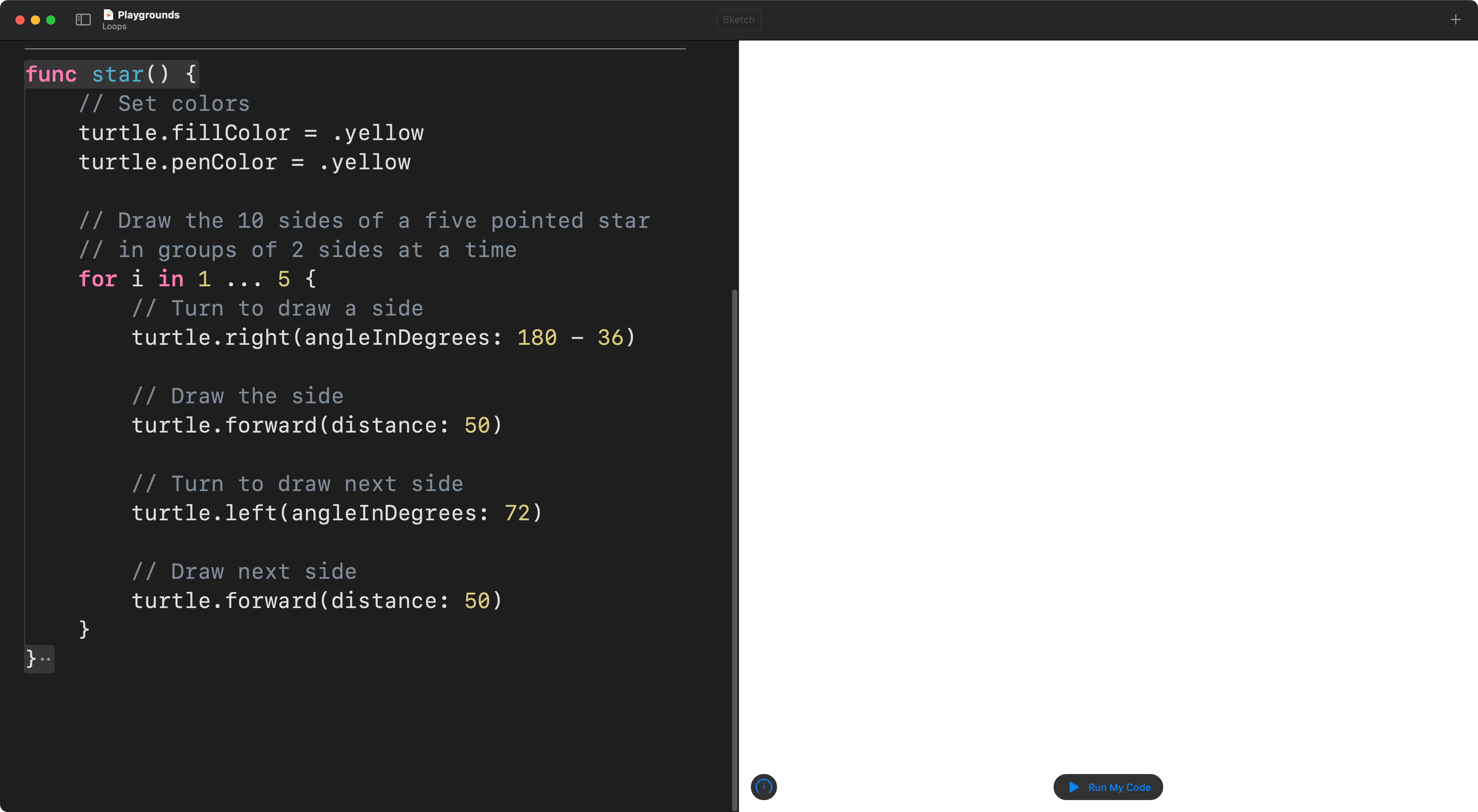
This defines the function – it “teaches” the computer how to draw a star.
If you press Command-R to run the playground, no star will appear. 😕
We have taught the computer how to draw a star, but not asked it to draw a star.
Using a function
To use the function we need to type it’s name.
Start typing the name of the function – you will see that it is recognized by the autocomplete system:
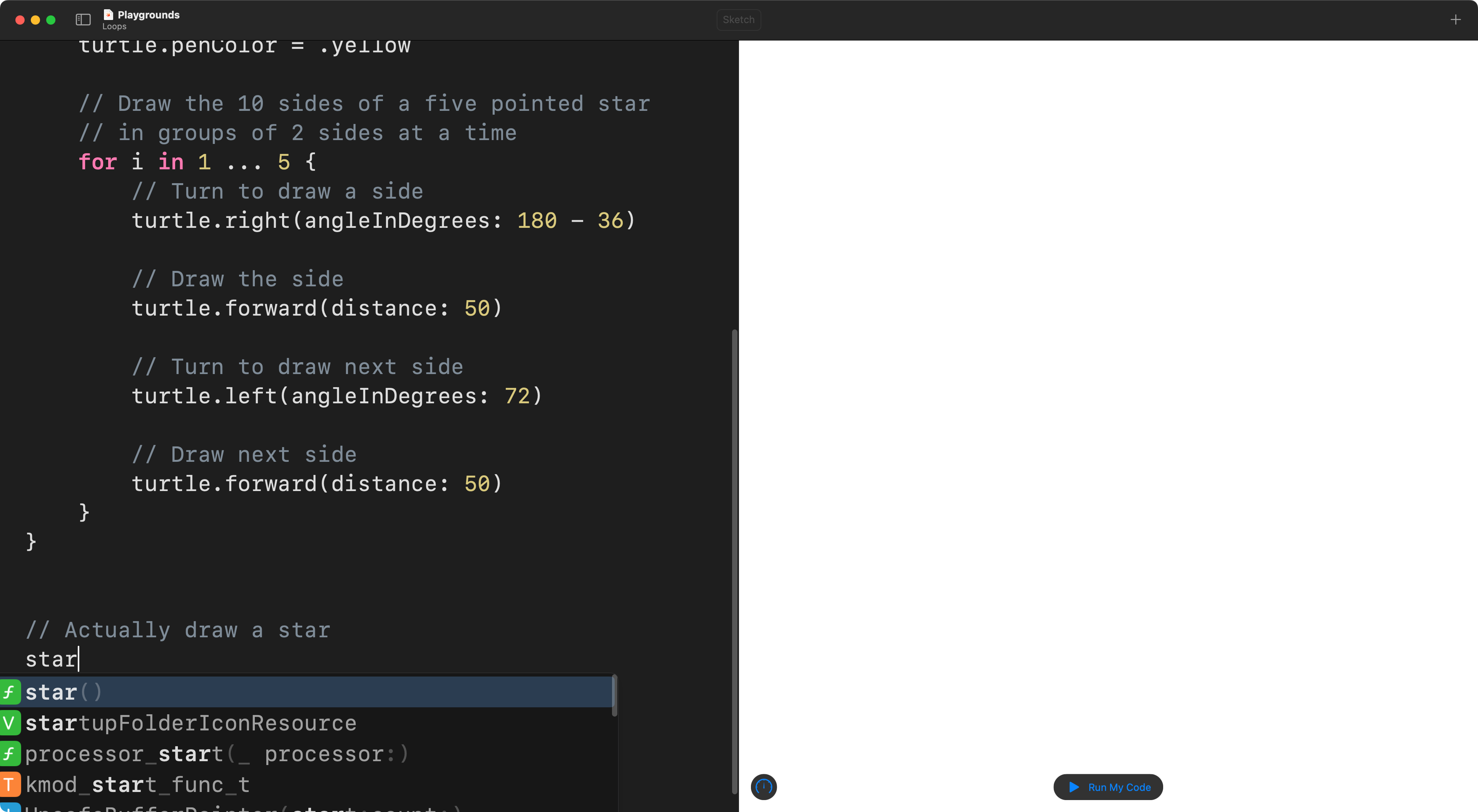
Press Return to use autocomplete, and then Command-R to run the playground:
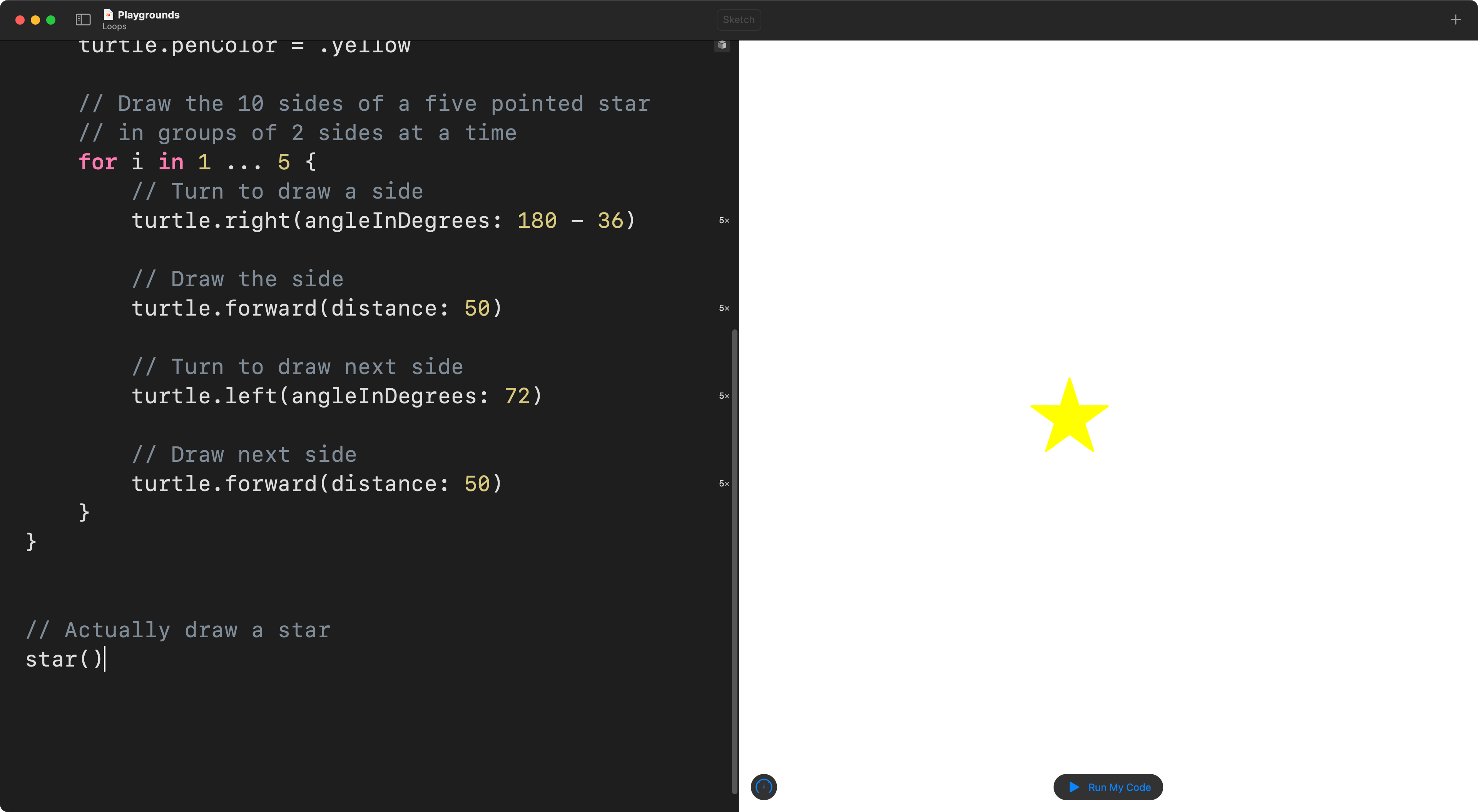
Now, since we have used, or invoked the function, we see a star drawn on the screen.
Exercise
Make a playground that uses the star function and a loop to draw many stars within the playground’s canvas.
NOTE
This exercise assumes that you have completed the steps described in Introduction to Loops.
Here is one example – see if you could create even more stars!