A lot can be done with fills and borders using the turtle in Swift Playgrounds.
Each shape has a fill and border. The width of the border of a shape can be adjusted.
Defaults
The defaults are:
- fill is clear
- border is blue
- width of border is 3 pixels
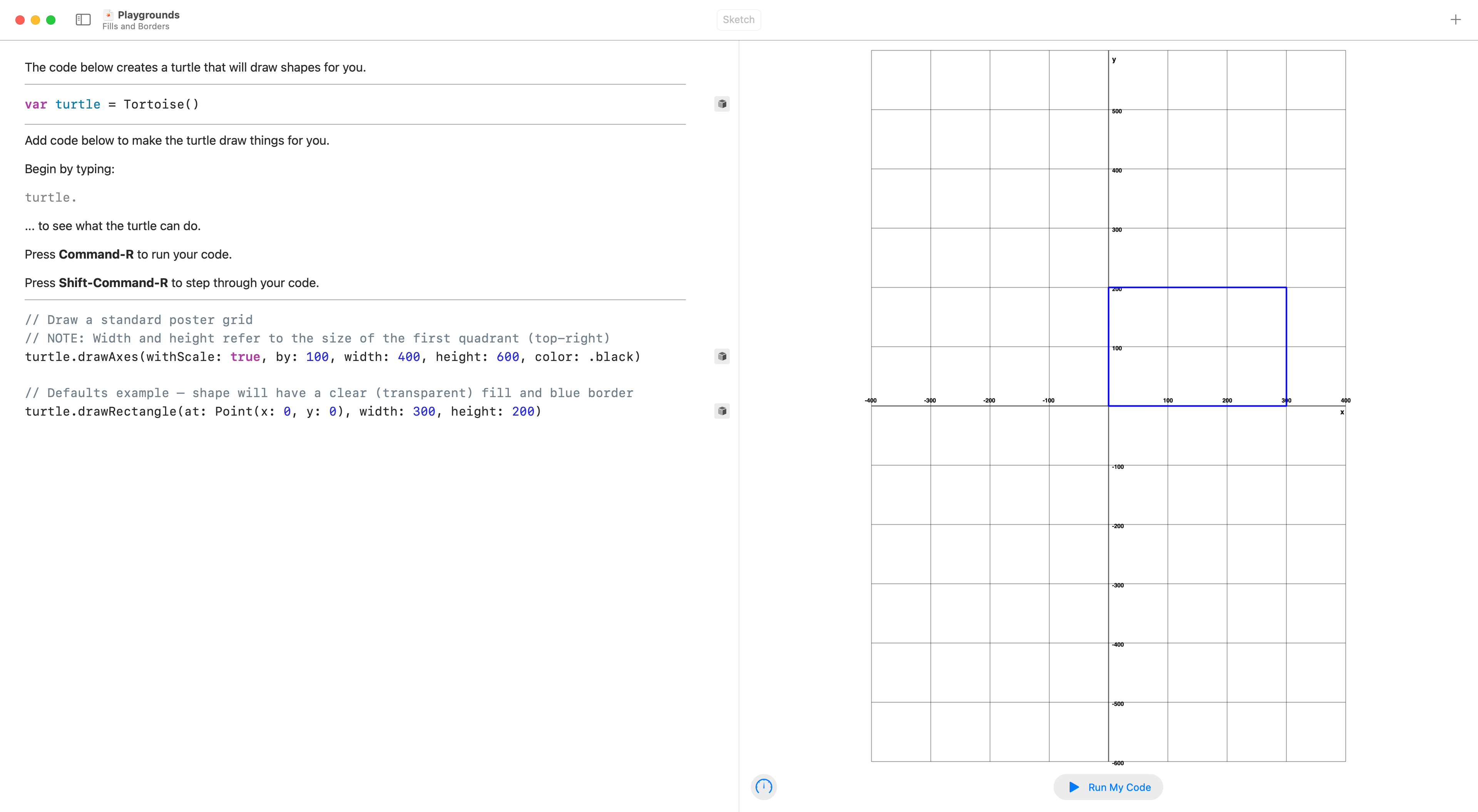
For example:
// Draw a standard poster grid
// NOTE: Width and height refer to the size of the first quadrant (top-right)
turtle.drawAxes(withScale: true, by: 100, width: 400, height: 600, color: .black)

// Defaults example – shape will have a clear (transparent) fill and blue border
turtle.drawRectangle(at: Point(x: 0, y: 0), width: 300, height: 200)
This produces:
Adjusting fill
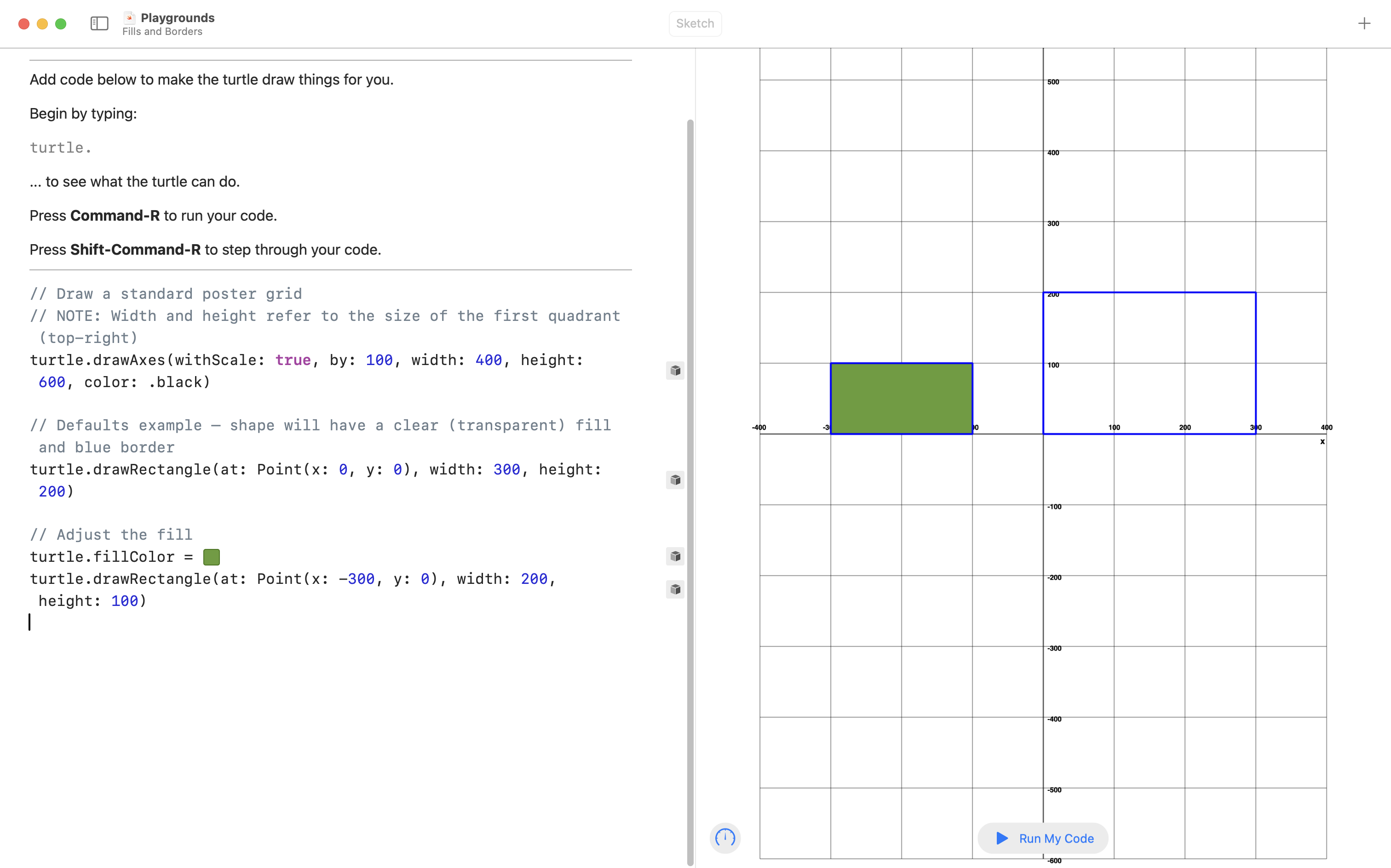
Let’s adjust the fill.
Here is how to do that – take note of how the color well is produced by typing #colorLiteral(:
The new code is:
// Adjust the fill
// NOTE: The #colorLiteral code will be converted into a "color well"
// when copy-pasted into a Playground
turtle.fillColor = #colorLiteral(red: 0.3997545242, green: 0.6133489013, blue: 0.2060141265, alpha: 1.0)
turtle.drawRectangle(at: Point(x: -300, y: 0), width: 200, height: 100)
The visual result is:
Adjusting the border color
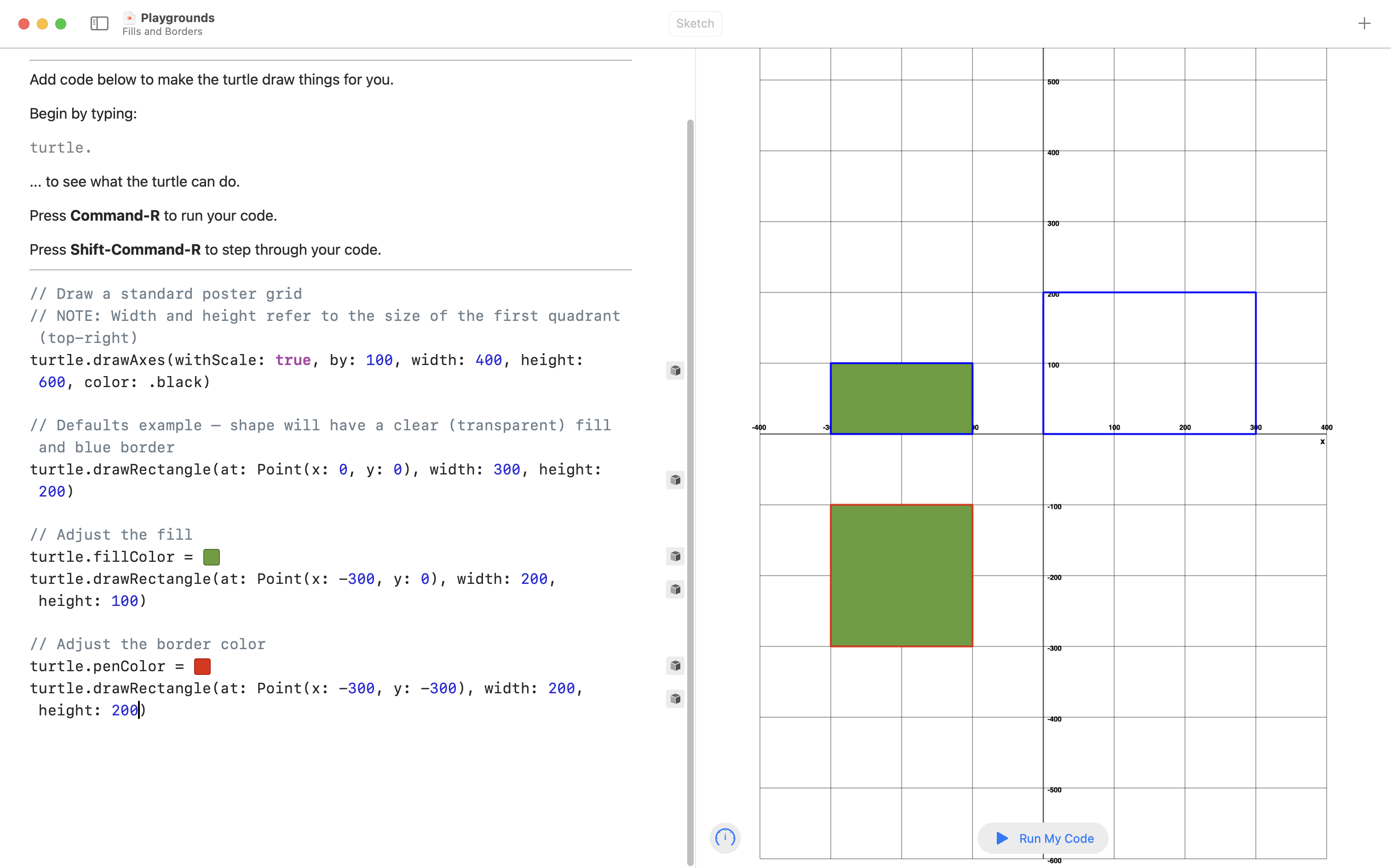
Here is the new code:
// Adjust the border color
turtle.penColor = #colorLiteral(red: 0.8894588351, green: 0.1420151591, blue: 0.0, alpha: 1.0)
turtle.drawRectangle(at: Point(x: -300, y: -300), width: 200, height: 200)
Here is the result:
Adjusting the border width
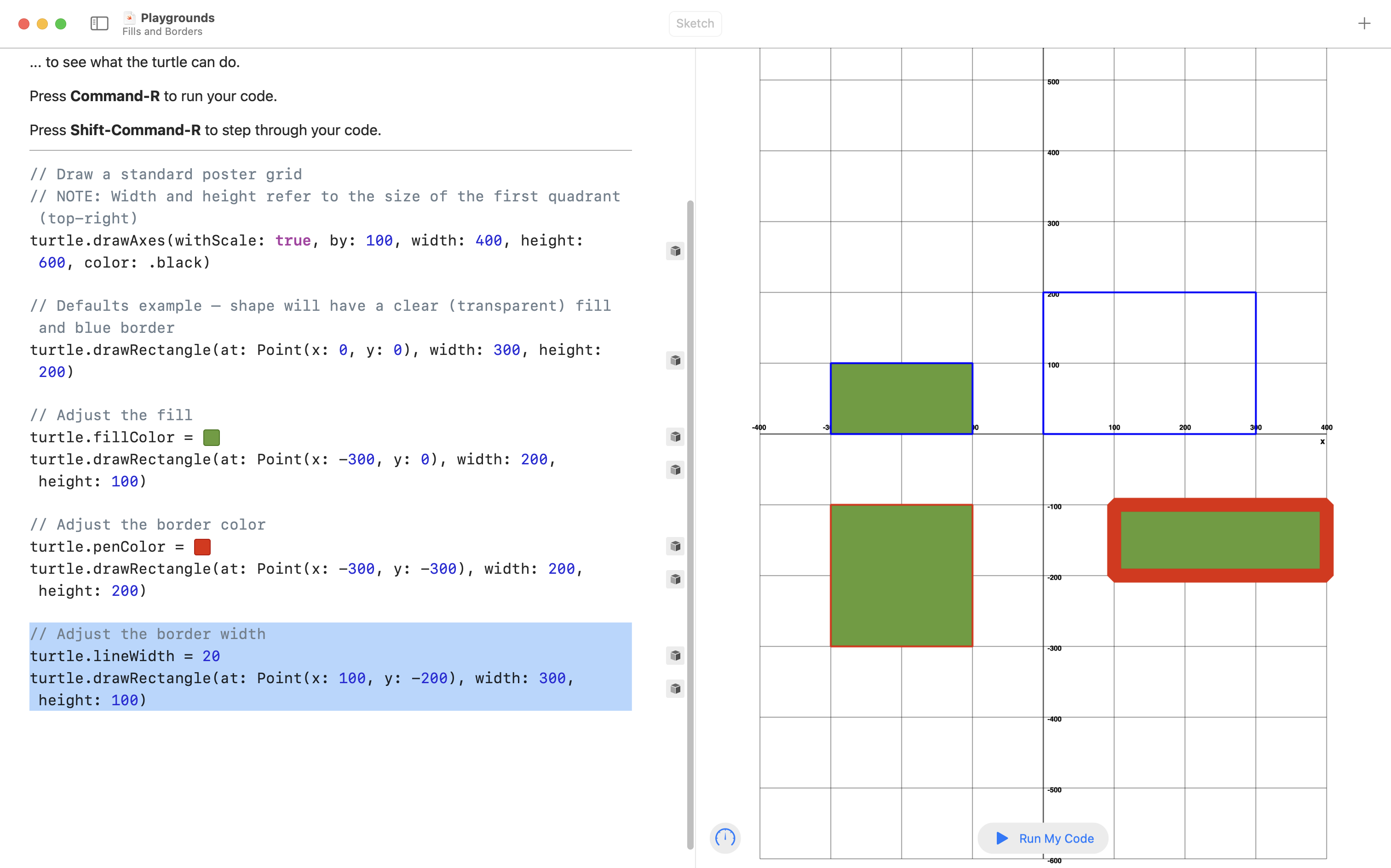
Here is the new code:
// Adjust the border width
turtle.lineWidth = 20
turtle.drawRectangle(at: Point(x: 100, y: -200), width: 300, height: 100)
Here is the result:
Sequence
The border and fill settings apply to all shapes drawn after a given change to the fill or border – the sequence, or order you supply instructions, does matter:
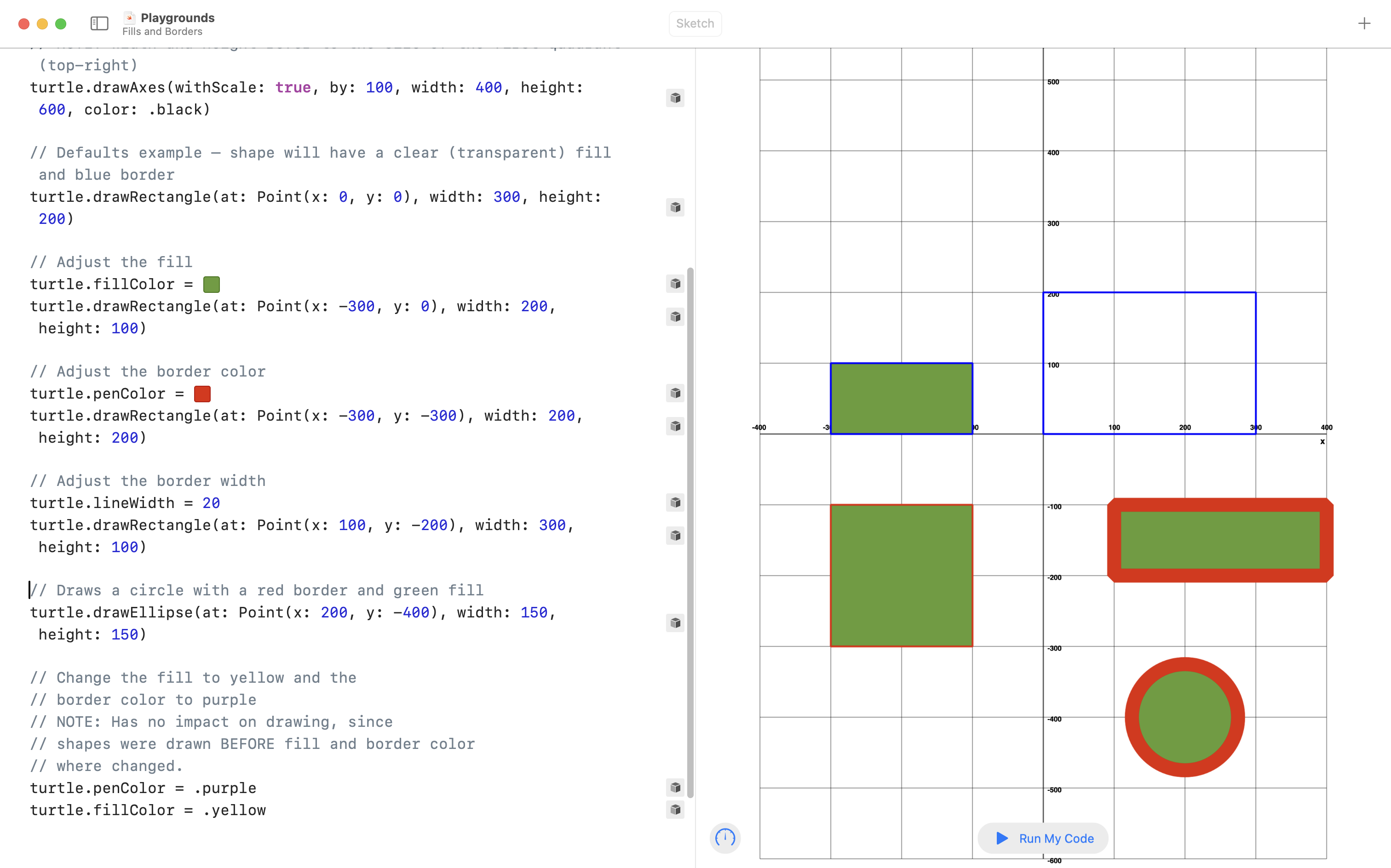
Conclusion
Here is all of the code shared above in one code block – use this as a reference while you work on reproducing gig posters, or producing your own gig poster, later in this module:
// Draw a standard poster grid
// NOTE: Width and height refer to the size of the first quadrant (top-right)
turtle.drawAxes(withScale: true, by: 100, width: 400, height: 600, color: .black)

// Defaults example – shape will have a clear (transparent) fill and blue border
turtle.drawRectangle(at: Point(x: 0, y: 0), width: 300, height: 200)

// Adjust the fill
turtle.fillColor = #colorLiteral(red: 0.3997545242, green: 0.6133489013, blue: 0.2060141265, alpha: 1.0)
turtle.drawRectangle(at: Point(x: -300, y: 0), width: 200, height: 100)

// Adjust the border color
turtle.penColor = #colorLiteral(red: 0.8894588351, green: 0.1420151591, blue: 0.0, alpha: 1.0)
turtle.drawRectangle(at: Point(x: -300, y: -300), width: 200, height: 200)

// Adjust the border width
turtle.lineWidth = 20
turtle.drawRectangle(at: Point(x: 100, y: -200), width: 300, height: 100)

// Draws a circle with a red border and green fill
turtle.drawEllipse(at: Point(x: 200, y: -400), width: 150, height: 150)

// Change the fill to yellow and the
// border color to purple
// NOTE: Has no impact on drawing, since
// shapes were drawn BEFORE fill and border color
// where changed.
turtle.penColor = .purple
turtle.fillColor = .yellow